SchoolDude Login (2026): Official Links, Brightly Access & Fixes
Standing in a dim hallway with a flickering light overhead while your phone keeps bouncing you between login screens is not how anyone plans to start their day. Yet that’s exactly how many teachers, technicians, and facilities teams experience SchoolDude login problems in 2026. The platform names changed, the portals shifted, and districts rolled out new security rules faster than most people could update their bookmarks.
This guide gives you the correct SchoolDude login links that work in 2026, explains how the legacy SchoolDude brand fits into the modern Brightly Asset Essentials ecosystem (now part of Siemens’ digital infrastructure stack), and walks you through practical fixes when login fails. Whether you just need the right URL or you’re stuck in a redirect loop, this page is built to get you back into the system fast.
TL;DR – 2026 Status Check (Read This First)
|
Official SchoolDude Login Links (Verified for 2026)
Start with the portal your district actually uses:
Primary login endpoints
-
Legacy SchoolDude login:
https://login.schooldude.com -
Brightly / Asset Essentials (MySchoolBuilding) login:
https://login.myschoolbuilding.com
Quick reality check:
Many districts still say “log into SchoolDude,” but the working portal is now Brightly’s MySchoolBuilding login. If you’re redirected, that’s expected.
The 2026 State of SchoolDude: From Legacy Portals to the Siemens–Brightly Ecosystem
SchoolDude is no longer a standalone product in most environments. Over the past few years, Brightly consolidated SchoolDude’s legacy tools (like MaintenanceDirect) into Brightly Asset Essentials, which is now part of Siemens’ broader digital infrastructure portfolio.
What changed for users on the ground:
-
Branding drift: People still say “SchoolDude,” but the interface often says Brightly.
-
Portal consolidation: Old URLs may redirect to MySchoolBuilding.
-
Security upgrades: District SSO (Microsoft 365 / Google Workspace) and MFA are now common.
-
Staggered migrations: Some districts moved early, others are still mid-transition.
If the login experience feels inconsistent, that’s because districts adopted the new ecosystem at different times.
Which Login Page Should You Use? (2026 Decision Map)
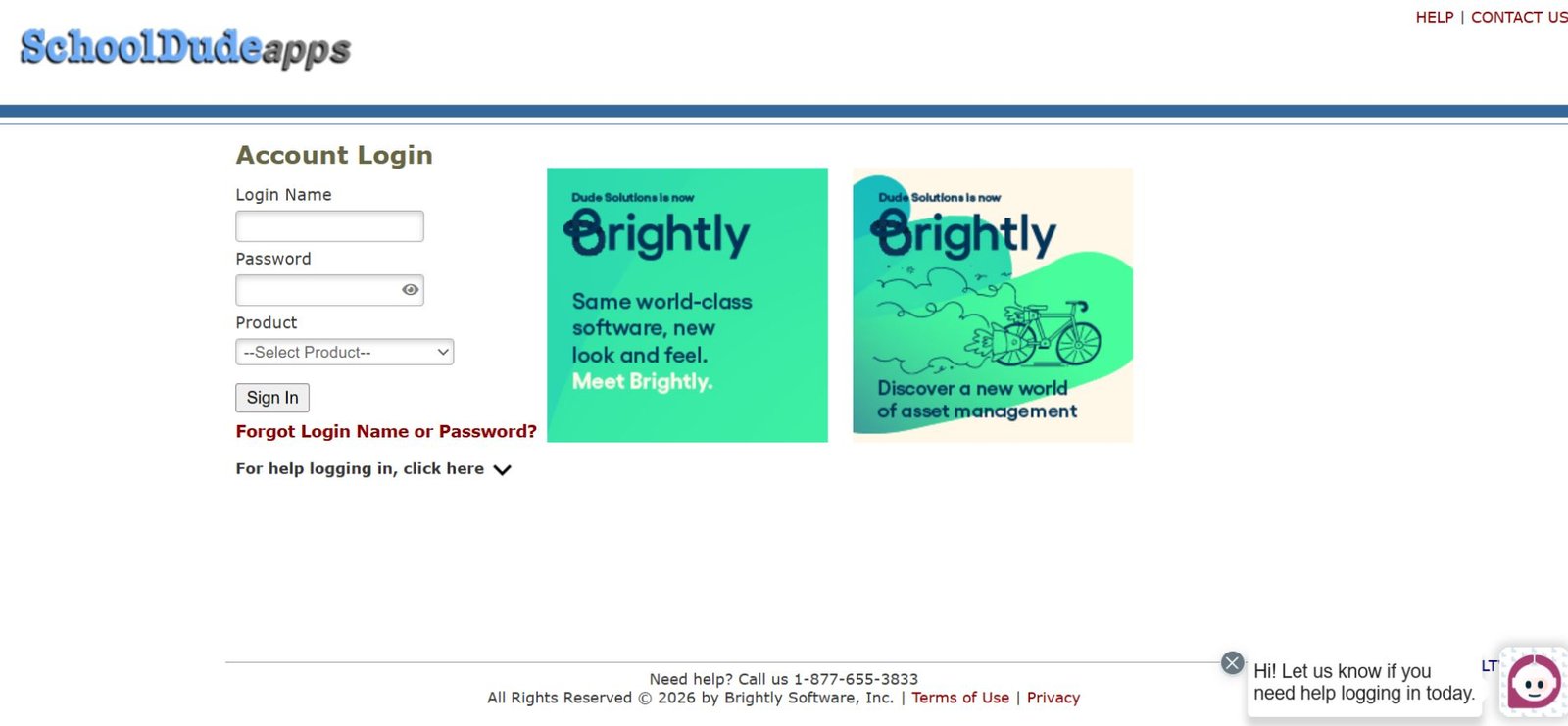
Use login.schooldude.com if:
-
Your district hasn’t fully migrated
-
Your old bookmark still works
-
You’re not prompted for Microsoft/Google sign-in
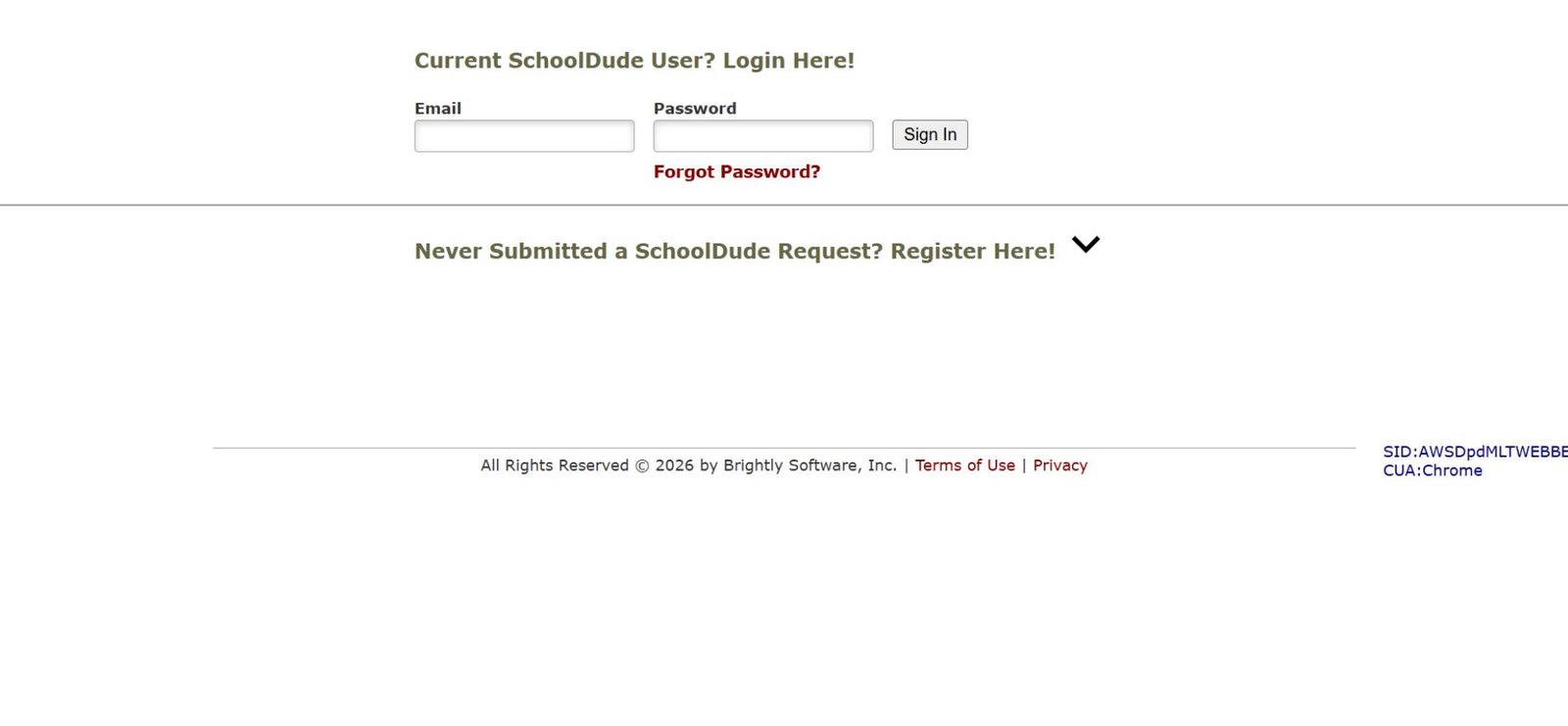
Use login.myschoolbuilding.com if:
-
You see Brightly branding
-
You sign in with your district email
-
Your district uses Asset Essentials
-
You’re redirected from the SchoolDude URL
First-Time Login? You Might Need an Account Number
For new users, the most common blocker isn’t a password — it’s the Account Number.
This is a 9-digit district code Brightly uses to route you to the correct organization.
Where to find it:
-
A printed poster in the maintenance office or breakroom
-
A district onboarding email
-
A quick-start sheet from IT
-
Sometimes taped near shared workstations
If you don’t have it:
-
Ask your facilities supervisor
-
Check your onboarding email
-
Contact your IT department (they can provide it immediately)
How to Log Into SchoolDude (Desktop & Mobile)
Desktop
-
Enter your district email
-
Complete SSO (Microsoft 365 or Google Workspace, if enabled)
-
Select your module (Asset Essentials / MaintenanceDirect)
Mobile
As of 2026, the legacy SchoolDude WorkCenter app is being phased out in favor of the Asset Essentials mobile app.
If the app won’t log you in:
-
Log in successfully through your browser first
-
Then switch to the Asset Essentials app
-
If loops continue, clear app cache or reinstall
2026 Security Changes That Affect Login (SSO & MFA)
Most districts now enforce Multi-Factor Authentication (MFA):
-
You may be asked to approve a sign-in on your phone
-
Some logins require an authenticator app code
-
Local SchoolDude passwords may no longer work
If MFA appears suddenly, nothing is broken. Your district updated its security policy.
Is SchoolDude Down — Or Is It a Login Issue?
Full platform outages are rare. Most “SchoolDude is down” reports turn out to be local session issues.
| Symptom | Likely Cause | What to Do |
|---|---|---|
| No one in your district can log in | Platform incident | Check Brightly system status |
| Only you can’t log in | Cookie/session issue | Try incognito mode |
| Works at home, not at school | Firewall restriction | Ask IT to whitelist Brightly domains |
| App fails, browser works | App cache | Log in via browser first |
If there’s a confirmed incident, waiting is often the fastest fix.
The 5-Step Login Recovery System (When You’re Locked Out)
-
Open an incognito/private window
Still stuck? Don’t call IT yet. This fixes most cookie loops. -
Confirm the correct portal
Make sure you’re on MySchoolBuilding if your district migrated. -
Try a different network
School firewalls sometimes block Brightly authentication domains. -
Check for SSO prompts
Look for “Sign in with Microsoft” or “Sign in with Google.” -
Reset your password only after confirming the portal
Resetting on the wrong domain won’t fix anything.
Common SchoolDude Login Problems (And Why They Happen)
-
Redirect loops: Old cookies from
schooldude.comconflicting with Brightly domains -
“Invalid credentials”: District now enforces SSO
-
White screens (often Safari): Redirect cookies failing during domain handoff
-
App login fails: Legacy app losing support
-
Logged in but see nothing: Permissions issue, not a login error
Why Login Looks Different by District
Two people can follow the same steps and get different results because:
-
Some districts enforce SSO
-
Some allow local passwords
-
Some restrict access by role
-
Some auto-redirect legacy portals
This isn’t user error. It’s configuration.
Also Check: Schoology Alfa 2026: Login, App & Student Guide
Real-World Example (From the Field)
A facilities coordinator could log in from home but not at school. Password resets didn’t help. The issue turned out to be a firewall rule blocking Brightly’s authentication domain after a network update. Once IT whitelisted the domain, access returned in minutes.
Takeaway: Many login failures are network-level, not account-level.
Logged In But Missing Modules?
If you can log in but don’t see your tools:
-
Your account exists
-
Your permissions don’t
Only your district admin or Brightly support can change access rights.
When to Contact Support
If you’ve confirmed the correct portal, tested incognito, and verified SSO:
-
Brightly Support (U.S.): 1-877-655-3833
-
Your district IT desk can also verify account provisioning
Common Mistakes to Avoid
-
Using bookmarks from years ago
-
Resetting passwords on the wrong portal
-
Mixing personal Google accounts with district SSO
-
Saving credentials in shared browsers
-
Assuming the app failing means your account is broken
FAQs
Q1. What is the correct SchoolDude login URL in 2026?
The official SchoolDude login URL in 2026 is https://login.myschoolbuilding.com, even if your district still refers to it as “SchoolDude.” Most districts have migrated to Brightly Asset Essentials, so using this portal ensures successful SSO access.
Q2. Why does SchoolDude redirect me to MySchoolBuilding?
SchoolDude now redirects to MySchoolBuilding because Brightly consolidated all legacy SchoolDude logins into a single portal. This ensures unified access across districts, SSO integration, and MFA security compliance.
Q3. Can I log in to SchoolDude without my district email?
No. Most districts in 2026 require a Microsoft 365 or Google Workspace account for SSO login. Using a personal email will not grant access to Brightly Asset Essentials or legacy SchoolDude modules.
Q4. Is the SchoolDude app still supported in 2026?
The legacy SchoolDude WorkCenter app is being phased out. For mobile access, use the Asset Essentials mobile app, which fully supports SSO login, modern security standards, and all district-assigned modules.
Q5. Why does SchoolDude work at home but not at school?
If you can log in from home but not at school, it’s usually due to network restrictions or firewall rules blocking Brightly authentication domains. Try testing in incognito mode or contact your district IT to whitelist Brightly login URLs.
Q6. I logged in, but can’t see my tools. Why?
Seeing a blank dashboard after login is typically a permissions issue, not a login failure. Module access depends on your district-assigned roles. Contact your district admin or Brightly support to adjust permissions.
Q7. What should I do if the SchoolDude login keeps looping or failing?
Login loops are often caused by outdated browser cookies, cached credentials, or redirects from legacy portals. Steps to fix:
-
Clear browser cookies or use incognito mode
-
Confirm you’re using the correct Brightly/MySchoolBuilding portal
-
Test from a different network
-
Contact Brightly support if the issue persists
Conclusion
Most SchoolDude login issues in 2026 aren’t true account failures. They’re the side effects of a platform that evolved from a legacy portal into a modern, SSO-secured Brightly ecosystem. Once you know which portal your district uses and how SSO fits into the flow, login problems usually take minutes — not hours — to fix.
Related: Ultimatix Login Not Working? Fix It Fast (2026 Guide)






Post Comment