Aula F75 Software: Download, Customize & Optimize Today
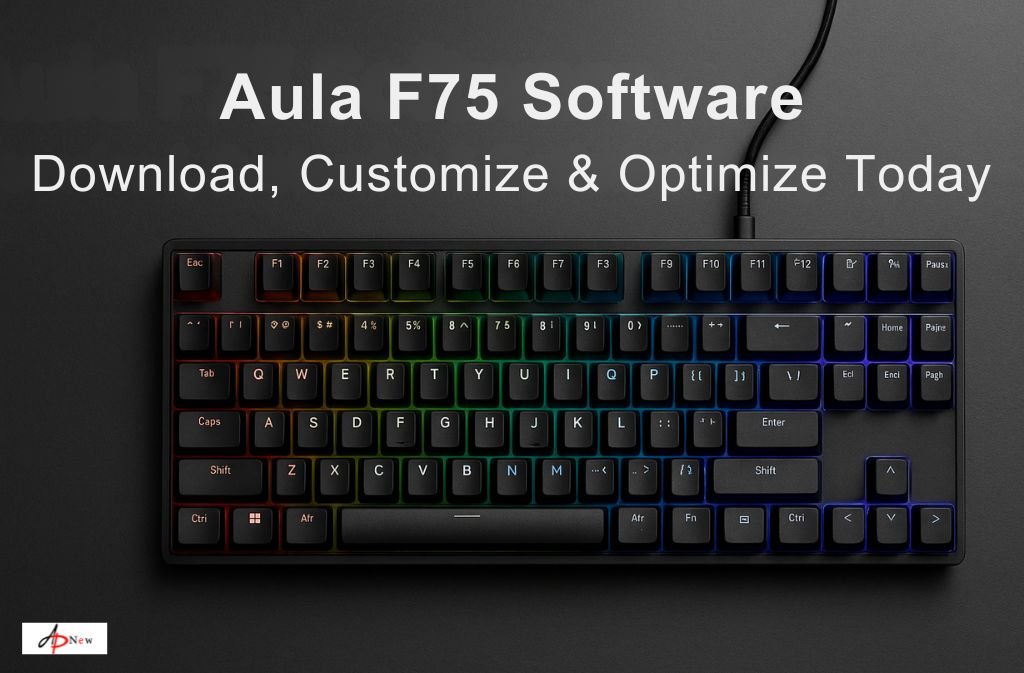
If you’re a gamer, content creator, or productivity enthusiast, you know that your keyboard is more than just a typing tool—it’s the command center for your workflow or gaming setup. Enter the Aula F75 keyboard, a compact, high-performance keyboard loved by enthusiasts worldwide. But here’s the thing: owning the keyboard is just the first step. To truly unlock its potential, you need Aula F75 software.
This guide dives deep into everything you need to know about the software—how to download it safely, customize your keyboard, create macros, and troubleshoot common issues. Whether you’re on Windows or Mac, by the end of this guide, you’ll be operating your keyboard like a pro.
What is Aula F75 Software and Why You Need It
Let’s start with the basics. The Aula F75 software is a dedicated application that allows you to customize your keyboard beyond the standard plug-and-play experience. Think of it as your control hub: you can tweak lighting, remap keys, create macros, and manage profiles tailored for different games or tasks.
Imagine you’re in the middle of an intense MMO raid. With the right macros set up through Aula F75 software, you can execute complex combos with a single key press, shaving off precious seconds and improving your performance. Or, if you’re a designer or programmer, remapping keys can save you hours every week.
Key Features Include:
-
RGB Customization: Set up dynamic lighting zones, adjust brightness, and sync effects with games.
-
Macro Recording: Automate repetitive key sequences or create advanced combos.
-
Profile Management: Save different setups for gaming, work, or creative projects.
-
Key Remapping: Swap or disable keys to fit your workflow.
Compatibility & Requirements:
-
Windows 10/11 – Fully supported.
-
Mac OS – Partial support, some advanced features may be limited.
-
Hardware – Aula F75 keyboard connected via USB, latest firmware recommended.
How to Download and Install Aula F75 Software Safely
Before you get into customizing your keyboard, it’s essential to download the software from a trusted source. Unfortunately, some sketchy websites claim to offer Aula software, but installing from unverified sources can expose your system to malware.
Official Download Links:
Step-by-Step Installation:
-
Download the latest version from the official website.
-
Run the installer as Administrator.
-
Follow the on-screen prompts to install.
-
Restart your computer if prompted.
-
Launch the software and connect your Aula F75 keyboard.
Avoiding Fake Software:
Reddit threads like r/keyboards warn users about malicious clones. Always check file size, digital signatures, and download from official sources.
Customizing Your Aula F75 Keyboard Like a Pro
Once installed, the fun begins. The software turns your keyboard into a personalized powerhouse.
RGB Lighting and Effects
One of the first things most users notice is the vibrant RGB lighting. You can create multiple profiles, set dynamic lighting zones, and even synchronize effects with games or other peripherals. Want a “health bar” effect that changes color based on in-game HP? The software can handle it.
Creating Macros
Macros aren’t just for gamers. They save time in repetitive tasks. For example:
-
Gaming: Combine multiple keystrokes into one for MMO combos.
-
Productivity: Automate repetitive coding or design commands.
Key Remapping & Profile Management
Different games and apps have different needs. Aula F75 software allows you to remap keys, swap modifiers, and even disable keys you rarely use. Profiles can be stored and switched on the fly, ensuring the keyboard is always ready for the task at hand.
Pros and Cons of Aula F75 Software
It’s important to look at both sides to maintain credibility and trust.
Benefits:
-
Deep customization for gamers and professionals.
-
Macros increase efficiency and reduce repetitive strain.
-
RGB and profile management make the keyboard highly versatile.
Drawbacks:
-
Some users report minor bugs after software updates.
-
Mac support is partial—some advanced features are Windows-only.
-
Learning curve for advanced macro setup can be steep for beginners.
Troubleshooting Common Aula F75 Software Issues
Even the best software can have hiccups. Here’s how to handle them:
-
Software Not Detecting Keyboard:
Ensure your USB connection is secure and try different ports. Updating the keyboard firmware often fixes detection issues. -
Macros or Profiles Not Saving:
Check if the software has administrative privileges. Saving profiles often requires admin rights on Windows. -
RGB Lighting Issues:
Restart both the software and keyboard. Verify the firmware is up to date. If using Mac, note that some lighting effects may not be supported.
Aula F75 Alternatives and Similar Software
While Aula F75 software is tailored for its keyboard, some users explore alternatives:
-
Epomaker X Software: Offers similar macro and lighting control, sometimes with broader device compatibility.
-
Open-source Keyboard Software: QMK and VIA allow advanced users to tweak layouts and macros for multiple devices.
Choosing the right software depends on your setup, workflow, and whether you prioritize plug-and-play ease or deep customization.
FAQs
1. Does Aula F75 have software?
Yes, the Aula F75 keyboard has dedicated software for Windows and partial support for Mac. It allows customization of lighting, macros, and key functions.
2. How do I download Aula F75 software safely?
Always download from official sources like Epomaker, Aula Innovations, or AulaGear blogs to avoid viruses and fake versions.
3. Is Aula F75 software compatible with Mac?
Partial compatibility exists. Core functions like macros and RGB lighting may be limited. Windows provides full access.
4. Can I customize RGB lighting on Aula F75?
Absolutely. The software allows zone-based customization, dynamic effects, and syncing with profiles or games.
5. Are there risks of viruses or malware with Aula F75 software?
Only if downloaded from untrusted sources. Always verify official websites and digital signatures before installing.
Conclusion – Unlock the Full Potential of Your Aula F75 Keyboard
Owning an Aula F75 keyboard is just the beginning. By installing and learning the Aula F75 software, you transform a simple keyboard into a fully customized command center—whether for gaming, work, or creative tasks. With RGB lighting, macro automation, and key remapping, your keyboard adapts to you, not the other way around.
The software might require a little learning, but once mastered, it opens a world of possibilities. Think of it as the secret sauce that elevates your typing, gaming, and workflow efficiency. Start small, experiment with macros and profiles, and gradually explore deeper customization. By the end, you’ll wonder how you ever managed without it.
For more, visit: apnew.co.uk







Post Comment